Note:
Since GoDaddy officially only allows users with more than 10 domains in their GoDaddy account to use the DNS API interface (for specific reasons, see Reddit)
Users who do not meet this condition cannot use DNS authorization to apply for certificates for domains in GoDaddy. It is recommended to use DNS authorization-free mode to apply for certificates
1. Introduction
CertOne supports applying for free SSL certificates issued by Let'sEncrypt through GoDaddy's DNS API, and supports automated renewal, deployment, monitoring, alerting and other functions for SSL certificates, supporting automated deployment to Alibaba Cloud, Tencent Cloud, Synology NAS, Qiniu Cloud, Doge Cloud, Upyun, Baota Panel, Docker containers, etc.2. How to Configure Parameters
Below is an introduction on how to obtain the parameters required to create a "DNS Authorization - GoDaddy" type.
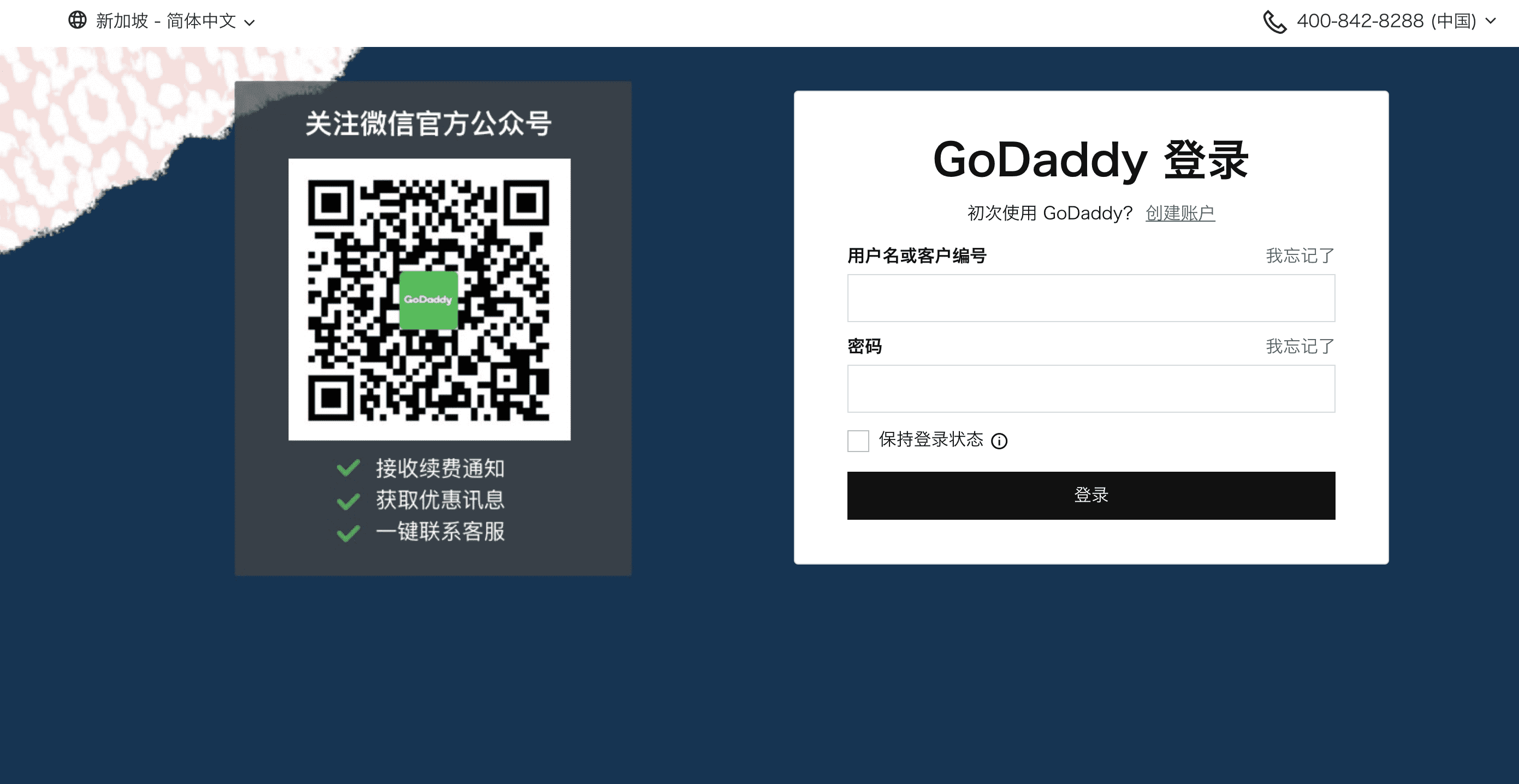
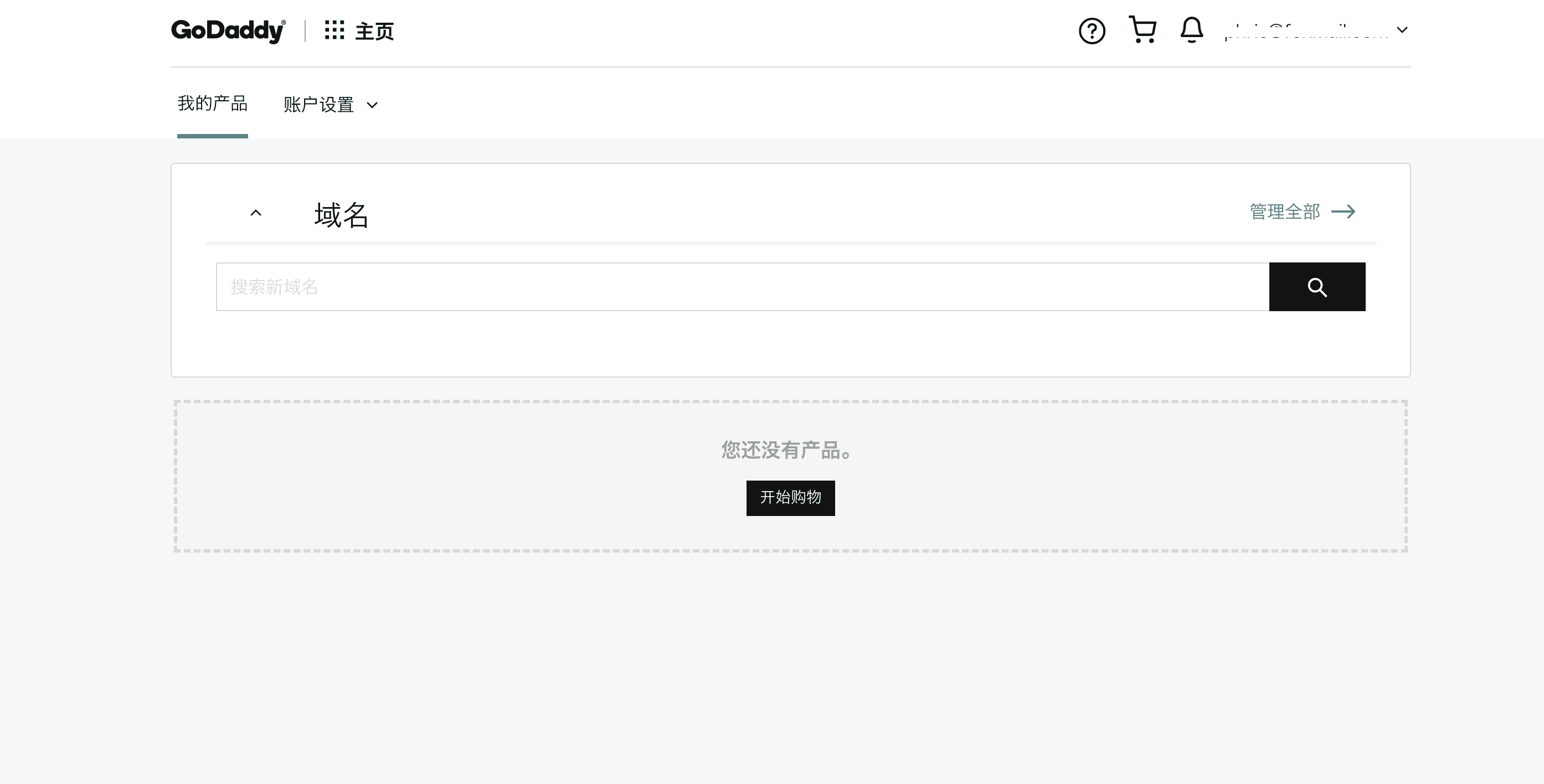
1. Log in to GoDaddy
GoDaddy login address: https://sso.godaddy.com/?realm=idp&path=%2Fproducts&app=account
2. Open Developer Center
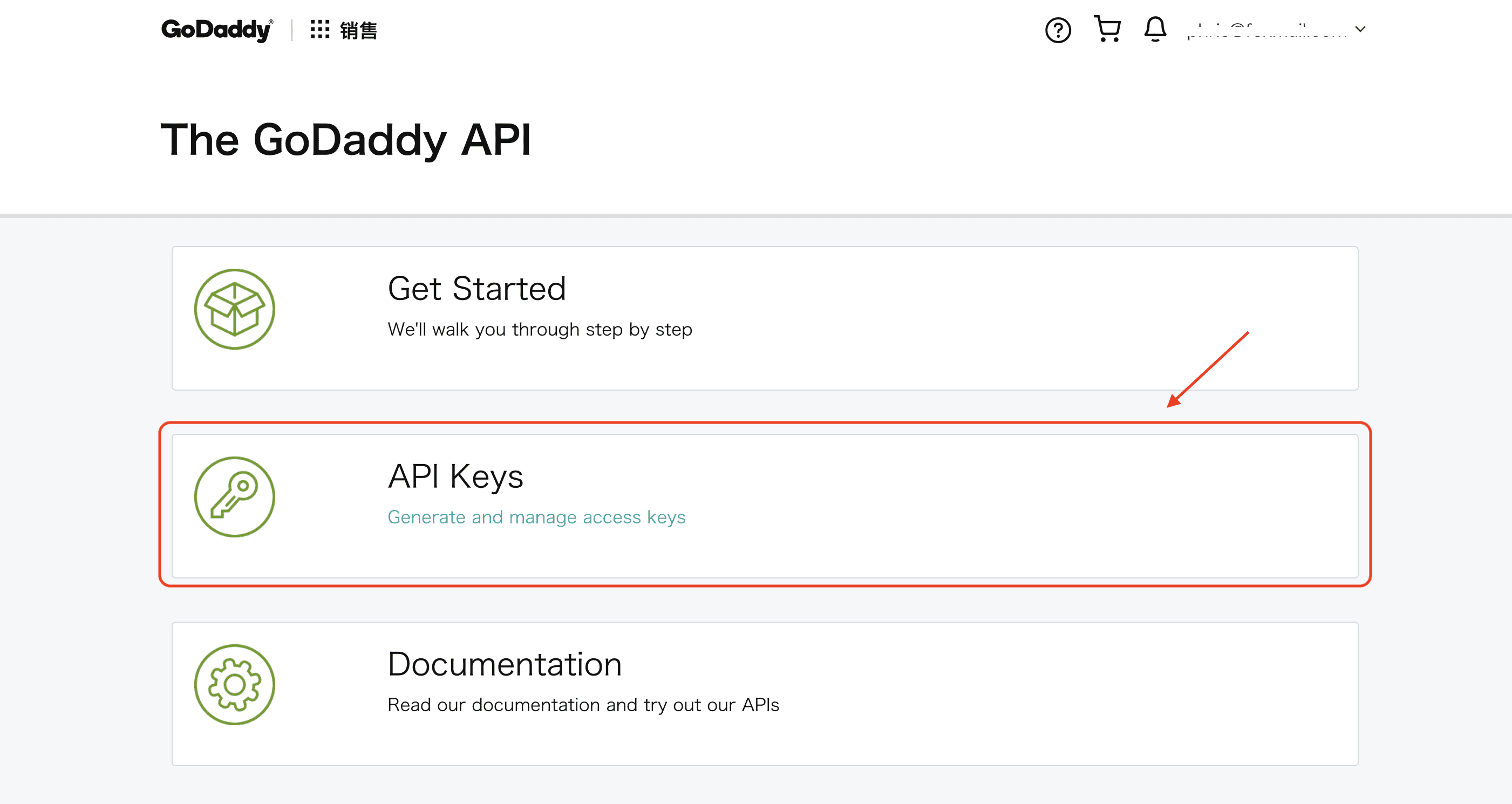
After logging in, click the link on the right to open GoDaddy Developer Center: https://developer.godaddy.com/
Click [API Keys] to enter API Key Management: https://developer.godaddy.com/keys/
3. Enter API Key Management
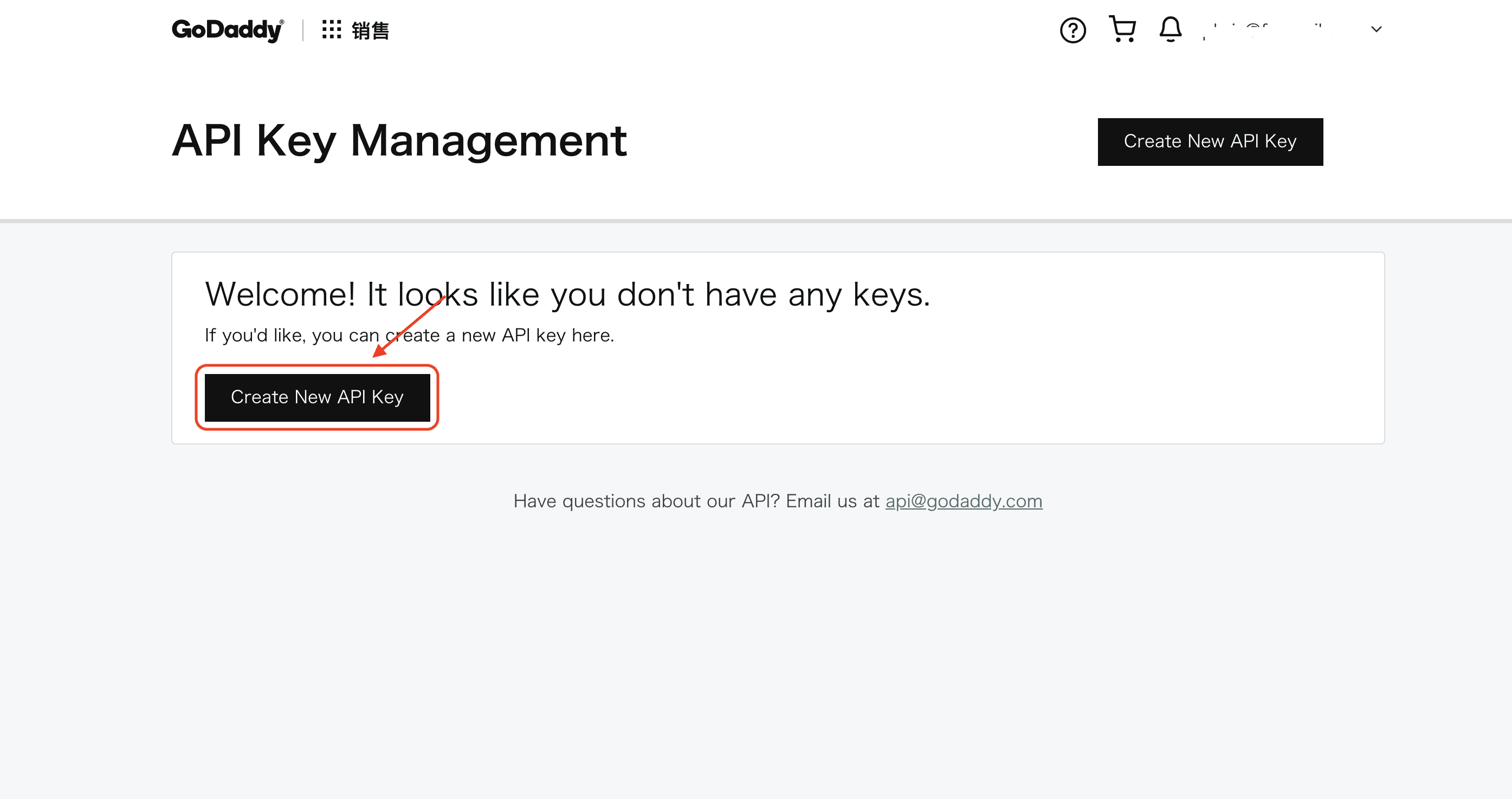
After entering API Key Management, click [Create New API Key] to create an API Key
4. Create API Key
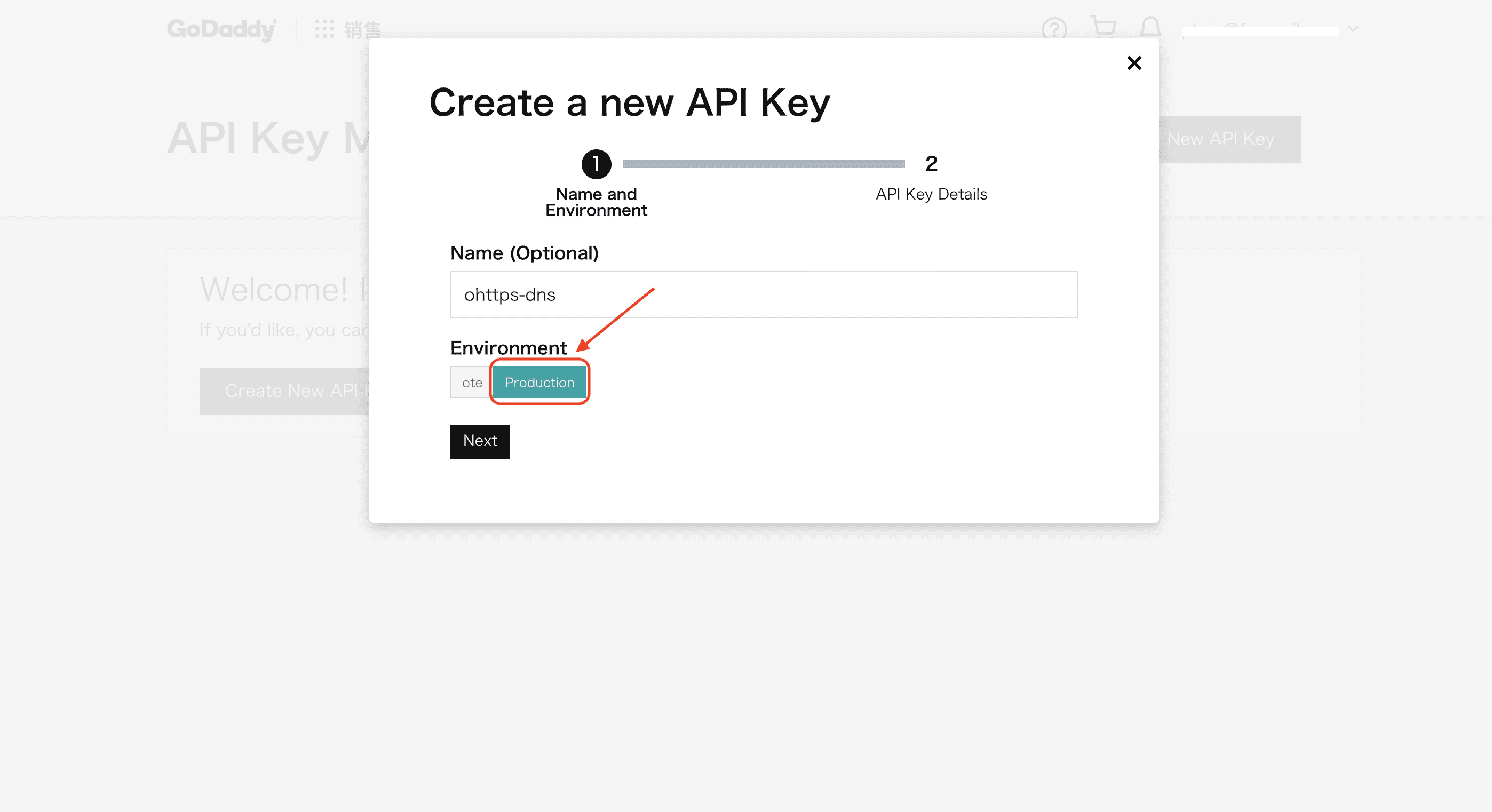
When creating an API Key, note to select Environment, you must select Production.
5. Save Key and Secret
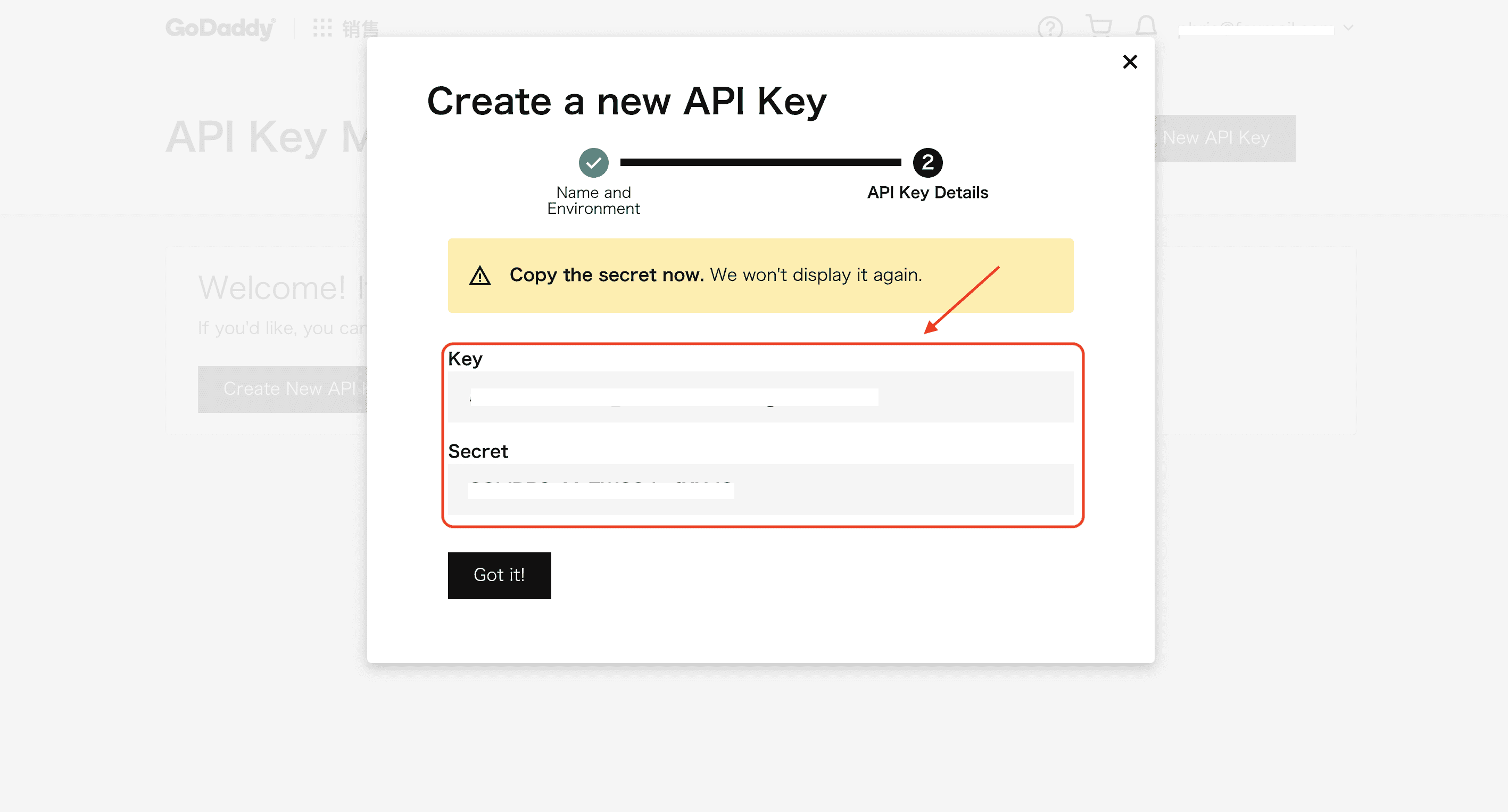
After API Key creation is complete, promptly save the Key and Secret.
6. Add DNS Authorization in CertOne
The Key and Secret saved in step 5 are the content that needs to be filled in when adding [DNS Authorization-GoDaddy] in CertOne.